Panel Climate
About
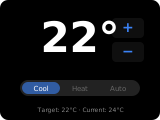
The climate panel controls a single climate/HVAC entity — temperature setpoint adjustment, HVAC mode selection, fan modes, swing modes, and presets. All available HVAC modes are shown as icons at the bottom of the panel.
Popup Variant
The popup variant (popup_climate) mirrors the main panel layout. It is used automatically when a climate entity is assigned as an item on another panel.
Controls
| Widget | Description |
|---|---|
| Temperature display | Large current temperature reading in Home Assistant's temperature unit (°C or °F). |
| Temperature up/down | Buttons to increase/decrease the target temperature setpoint by the entity's target_temp_step (when the entity does not report one: 1 on °F systems, 0.5 otherwise). Shown while the entity reports a single target temperature (temperature). |
| Range setpoints (low/high) | Two setpoint displays with their own up/down buttons, shown while the entity reports target_temp_low and target_temp_high (e.g. Heat/Cool mode). Steps use the same rule as above, are clamped to the entity's min/max temperature, and the low setpoint never exceeds the high one. |
| Title | Displays the entity's friendly name. |
| Power-off button | Header button, shown while the climate entity is not off. Sets the HVAC mode to off. |
| HVAC mode row | Bottom row of mode icons (heat, cool, auto, dry, fan_only, etc.). Shows modes available on the entity (up to 6). |
| Fan mode button | Opens a popup to select fan mode. Always shown; greyed out and not tappable when the entity does not support fan modes. |
| Swing mode button | Opens a popup to select swing mode. Always shown; greyed out and not tappable when the entity does not support swing modes. |
| Preset button | Opens a popup to select a preset. Always shown; greyed out and not tappable when the entity does not support presets. |
How to configure
In the panel editor, set:
- Item (entity picker) — A climate/HVAC entity to control. Required.
- HVAC modes (multi-select list) — Override the set and order of HVAC modes shown on the panel. Available choices: Off, Heat, Cool, Heat/Cool, Auto, Dry, Fan Only. Modes the entity does not support are skipped. If not set, the panel shows the modes the entity supports.
Display Behavior
- The title shows the entity's friendly name.
- The large center display shows the current temperature from the entity.
- HVAC mode buttons auto-hide/show based on supported modes (or the override).
- When the target temperature is adjusted, the new setpoint is sent via the
set_temperatureservice. - Single and range setpoints follow the entity's current attributes, as in Home Assistant's own thermostat card: entities supporting both show whichever the current mode reports, and the display switches on each state update. Range changes are sent via
set_temperaturewithtarget_temp_lowandtarget_temp_high. - Fan mode, swing mode, and preset each open a selection popup when tapped.